Jay Sen Lon
September 11, 2026


Setting up multi-currency in Xero looks simple until a client's foreign bank account gets mapped wrong or an opening balance never gets checked, and suddenly you're spending a month cleaning up what should've taken minutes. If you're processing invoices across currencies for clients, the setup mistakes and the reconciliation timing matter a lot more than the toggle switch itself.
TLDR:
Xero's multi-currency feature lets you invoice, bill, and bank in currencies other than your organization's base currency, all inside the same ledger. Xero supports transactions in 160+ currencies and updates exchange rates hourly using XE.com data, so a Singapore firm invoicing a client in euros sees a current rate applied instead of a manually typed-in figure.
Coverage spans sales invoices, bills, purchase orders, and bank accounts, all of which can run in foreign currencies. Xero converts each transaction back to base currency for reporting while keeping the original foreign amount visible on the record.
Multicurrency is not a universal plan feature. It is only available on certain Xero plans, and only users with the standard or administrator role can turn it on. If you are considering multi-currency accounting software options beyond Xero, there are several alternatives worth comparing. If a client is sitting on a lower tier plan, that is the first thing worth checking before promising foreign currency invoicing works right away.
Xero pulls exchange rates from XE.com, refreshing them every hour throughout the trading day. That hourly rate is what you see when you raise an invoice at 9am versus one at 4pm, and that is exactly where the confusion starts for a lot of firms.
Xero settles on one official rate per day, finalized at 11pm, so the figure that lands in your accounts is not necessarily the rate showing when you first raised the invoice. Two invoices to the same client, created a few hours apart, can convert at different values in the ledger even though nothing about the transaction changed. For e-commerce businesses, Xero multi-currency invoice automation adds another layer of complexity worth understanding separately. That is the daily settlement rate overriding whatever hourly snapshot you saw earlier.
If a client questions why two similar invoices show different converted totals, check this before assuming a data entry error.
Before turning multi-currency on, confirm the client's plan supports it, since multicurrency is not available on every Xero plan. You will also need standard or administrator access, so a read-only user role cannot flip this switch even if they can see the settings menu.
Setup itself is short. Go to Settings, then Currencies, and add each foreign currency your client transacts in. Once added, those currencies become selectable on invoices, bills, purchase orders, and bank accounts.
One thing worth flagging to the client before you click anything: turning on multi-currency is not something you casually reverse once historical foreign-currency transactions exist in the file. Treat the setup conversation as a one-way decision, not a toggle to try mid-year. For a broader view of invoice automation in Xero, the complete guide covers the full workflow from setup to reconciliation.
Multi-currency applies to sales invoices, bills, purchase orders, quotes, and bank accounts. Contacts also carry a default currency setting, so a recurring overseas supplier or customer does not need the currency re-entered on every transaction. Firms handling large volumes may want to look at multi-currency invoice processing software purpose-built for accounting practices.
Payroll works differently. Xero Payroll runs in your organization's base currency, so foreign staff or contractor payments do not convert automatically the way invoices and bills do. That gap catches firms off guard when a client assumes contractor payments behave like foreign invoices.
| Transaction Type | Multi-Currency Support |
|---|---|
| Sales invoices | Yes |
| Bills | Yes |
| Purchase orders | Yes |
| Quotes | Yes |
| Bank accounts | Yes |
| Contacts (default currency) | Yes, sets default for recurring transactions |
| Payroll | No, runs only in base currency |
Confirm which record types actually carry currency conversion for a given client before assuming full coverage across every report.
Xero tracks unrealised gains and losses before settlement and posts realised differences once payment lands, including to its Foreign Currency Gains and Losses account. UK practices can find more detail on automating invoice processing in Xero tailored to their specific compliance context. The actual dollar impact between invoice date and payment date shows up in the ledger, with each gain or loss posted to Xero's dedicated Foreign Currency Gains and Losses account at the point of settlement.
For firms managing multiple foreign currency clients, this distinction matters at month-end. An unrealised loss on an open invoice can reverse itself entirely by the time the client pays. Reviewing both accounts before finalizing reports keeps you from reporting a currency loss that never actually happens.
Setting up the bank account correctly means answering a few questions before you connect anything. Getting these wrong is what turns a five minute setup into a multi-month cleanup job. Firms dealing with PDF bank statements should also review how to convert PDF bank statements to Xero without manual entry.

A handful of setup mistakes show up again and again once a client's multi-currency file gets messy, and they all trace back to shortcuts taken during migration or day-to-day entry.
Xero's multi-currency engine works exactly as designed: it converts, tracks gains and losses, and settles a daily rate without anyone touching a calculator. Where it stops being enough is everything that happens before a transaction reaches that engine. Xero has no way to read a supplier invoice written in Portuguese, match the total to the right chart of accounts code, or flag that a foreign bank feed got mapped to a base currency account. It assumes the data arriving is already correct, coded, and sitting in the right currency field, and it has no mechanism to check any of that on its own. For firms with international client portfolios, the gap between an invoice landing in an inbox and that invoice sitting correctly inside Xero is where the actual hours go, long before exchange rates ever enter the picture.
Working through a foreign currency bank account follows the same process as any other account, with one extra step happening in the background: Xero recalculates the gain or loss on each transaction the moment you match it against the bank feed, comparing the rate at invoice date against the rate at settlement date.
Waiting until month-end causes problems. 30 unreconciled foreign transactions means 30 rate discrepancies surfacing at once, and separating genuine posting errors from normal exchange movement gets harder the longer the pile sits.
Check foreign accounts weekly. A mismatched rate or misapplied payment is easier to catch while the invoice is still fresh in memory, not three weeks and a dozen transactions later.
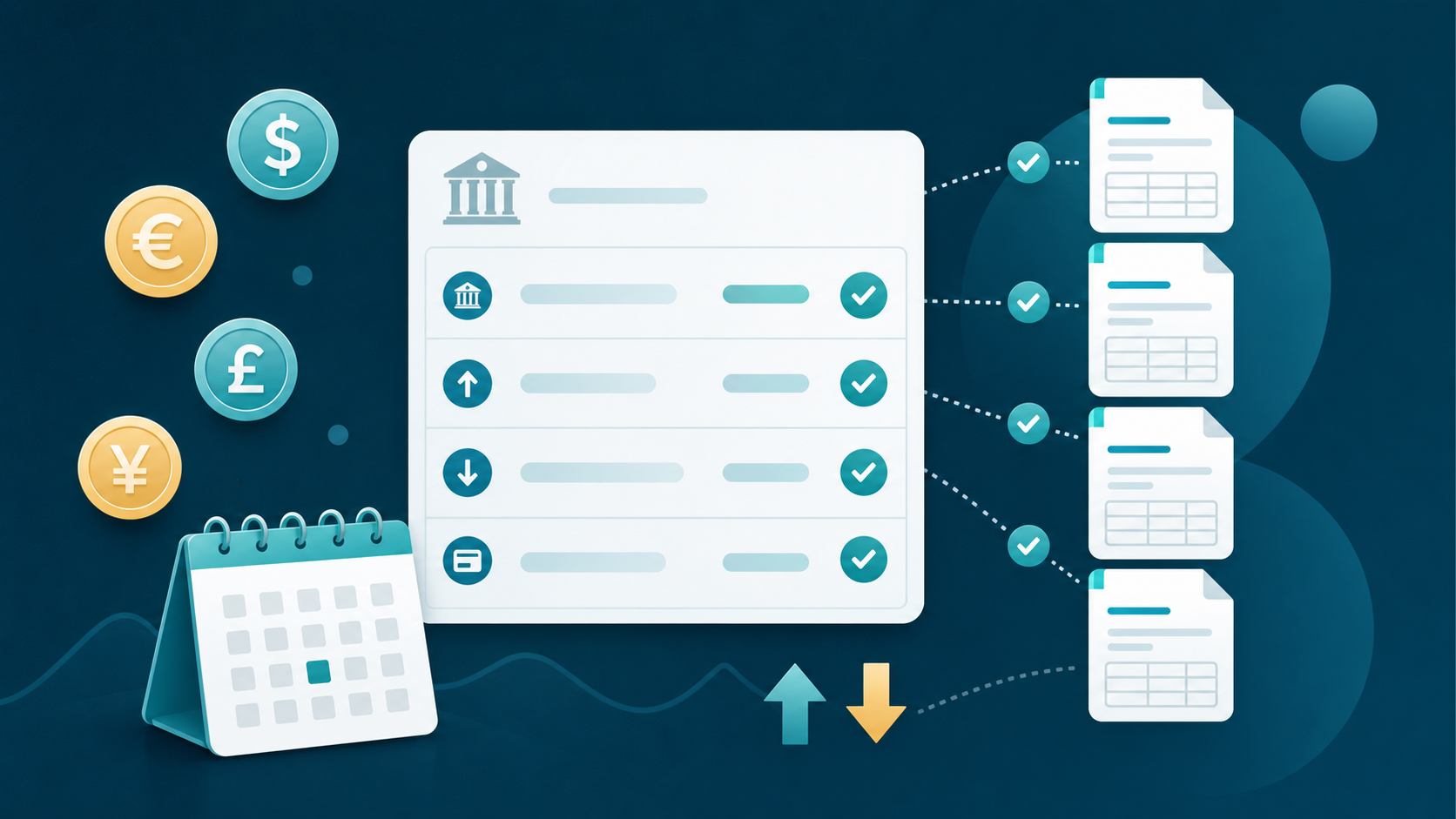
Every mechanic covered so far assumes a foreign-currency invoice is already sitting cleanly inside Xero, coded and ready for reconciliation. In practice, that data has to get there first, and for firms handling international clients, that step eats far more time than any currency setting ever will.
A foreign supplier invoice does not usually arrive as a tidy record. It arrives as a PDF in Portuguese or Mandarin, with a total in a currency your bookkeeper has to convert mentally before typing anything into Xero. Firms working across language barriers may also benefit from reviewing multilingual accounting software options that handle non-Latin scripts natively. Multiply that across dozens of suppliers, each invoicing in their own language and currency, and the conversion logic covered above becomes almost irrelevant if the invoice never gets entered correctly. Multi-language invoice processing OCR software is one category of tool built precisely for this extraction problem.
Labor costs can drop by as much as 75% when manual data entry is eliminated, per Parseur's invoice processing benchmarks. Xero's exchange rate engine works exactly as designed once the data exists. Getting it there is the actual bottleneck.
A default currency on a contact removes one layer of repetition, but it does nothing for the layer underneath it: someone still has to open each invoice, read the currency off the PDF, and key it in correctly before that default even matters. That step does not scale with contact settings. It scales with headcount, or it does not scale at all.
This is where the setup checklist and the reconciliation cadence both quietly depend on a manual step nobody names out loud. A firm can standardize weekly reconciliation across every multi-currency client and still watch backlog grow, because the standardization only governs what happens after the invoice is coded correctly in Xero, not the coding itself. For a tested comparison of Xero invoice automation tools, there is a dedicated review covering the leading options side by side.
Tofu sits one step earlier in this workflow: it is the AI document processing platform that turns a foreign-language, foreign-currency invoice into the coded, Xero-ready record your team would otherwise type by hand. Instead of a bookkeeper reading a Portuguese or Mandarin invoice and converting the currency mentally, Tofu extracts every line item, matches the supplier to the correct contact even when the name appears in a different script, and applies your firm's chart of accounts automatically. Its self-learning knowledge engine builds a separate coding profile per client entity, so a euro-denominated supplier invoice gets mapped the same way every time without anyone re-teaching the rule. Once an invoice is coded, Tofu publishes it directly into Xero with the original document attached, leaving currency conversion, exchange rate settlement, and reconciliation exactly where they already happen inside Xero. The firm still checks the bank feed weekly and still checks opening balances the way this guide describes; what changes is that the invoice arrives already coded and ready, instead of sitting in an inbox waiting for someone to translate and type it.
Xero pulls rates from XE.com every hour, but settles on one official daily rate at 11pm. Two invoices raised hours apart can convert at different values in your ledger. So if a client questions why similar invoices show different converted totals, check the daily settlement rate before assuming a data entry error.
The bottleneck is the step before Xero's exchange rate engine ever runs: reading a Portuguese or Mandarin invoice, matching the supplier, and coding every line item by hand. Tofu sits at that step. It extracts every line item from foreign-language invoices, matches the supplier to the correct Xero contact even across scripts, and publishes the coded record directly to Xero with the source document attached. Xero then handles currency conversion and reconciliation exactly as it always has.
The two that create the most cleanup are unverified opening balances during migration and mapping a foreign currency bank feed to a base currency Xero account. The first causes reconciliation drift that can take months to surface; the second breaks the conversion math silently without throwing an error.
Alongside it. Tofu extracts and codes foreign currency invoices and bank statements before they reach Xero; it does not match transactions against the bank feed itself. Reconciliation, exchange rate settlement, and gain/loss tracking all still happen inside Xero exactly as this guide describes, only with correctly coded data already sitting there when you get to it.
Check foreign currency accounts weekly instead of waiting until month-end. 30 unreconciled transactions means 30 rate discrepancies surfacing at once, and separating genuine posting errors from normal exchange movement gets harder the longer the pile sits. A weekly cadence keeps each mismatch close enough in time to catch while the invoice is still fresh.
Multi-currency in Xero rewards firms who set it up carefully and check the bank feed often, but the real bottleneck sits upstream of all that, in the pile of foreign invoices waiting to be read and coded. Your team can standardize weekly reconciliation and still watch backlog grow if that manual step never gets solved. Book a demo with Tofu to see how that coding step gets handled before it ever reaches your Xero file.