SunTao Lai
May 28, 2026

Most Xero OCR invoice processing tools handle simple invoices fine: one supplier, one charge, one account code. Then a client forwards an invoice with 25 lines in three different currencies, and the tool extracts the header and leaves the rest for you. If that describes your Tuesday afternoon, the tool you're using isn't built for the invoices you actually process.
TLDR:
Xero handles your general ledger well, but it was never built to read invoices for you. When a supplier PDF lands in your inbox, someone still has to open it, find the line items, and type them into Xero manually. That's where OCR invoice processing fits in.
OCR (optical character recognition) reads the text from a scanned or digital invoice image and converts it into structured data. When connected to Xero, that data gets mapped to the right fields: supplier name, invoice date, amounts, and line items.
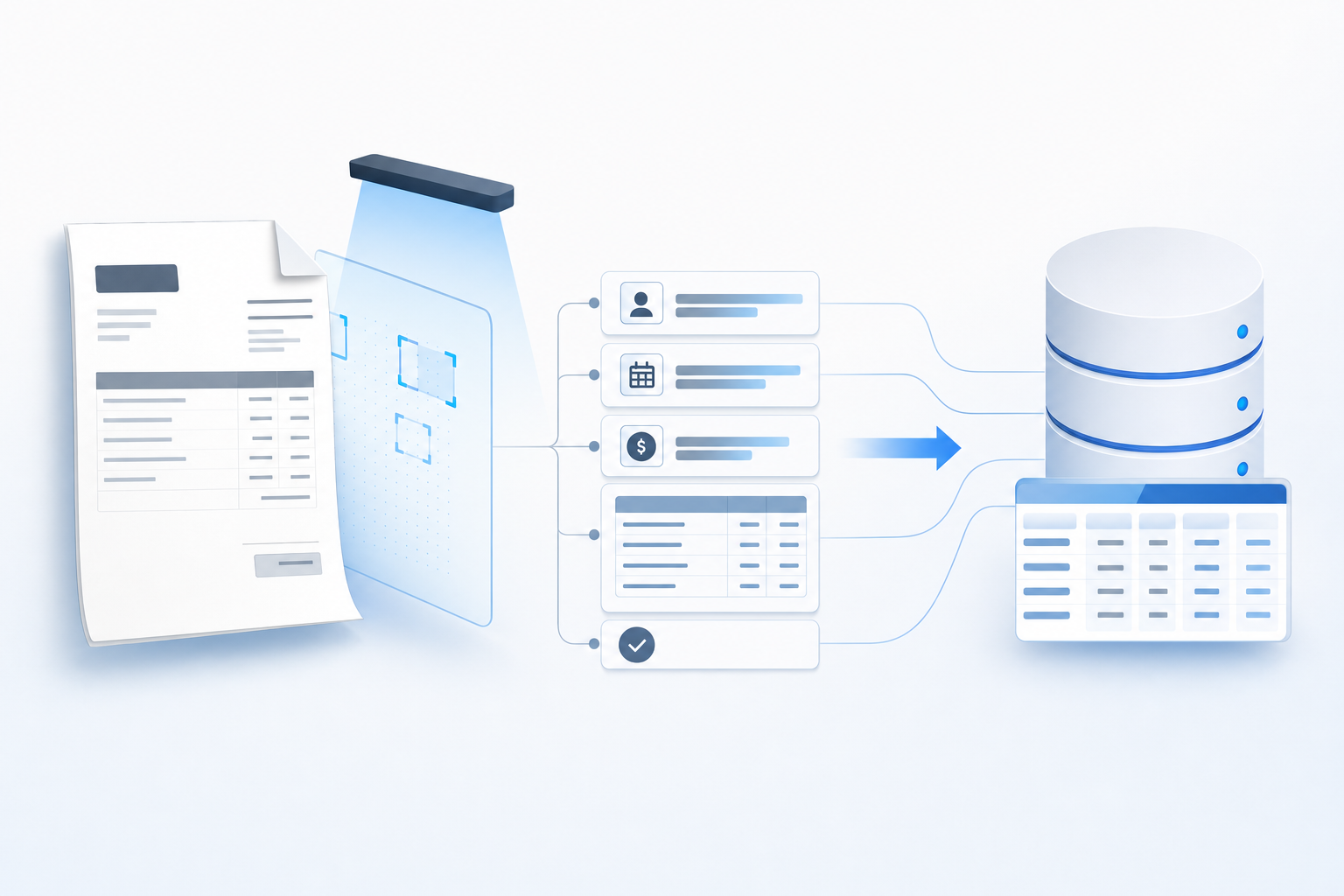
There are a few distinct steps involved:
The accuracy of that extraction varies a lot depending on the tool. Basic OCR handles clean, digital PDFs reasonably well. Handwritten invoices, low-resolution scans, or documents in non-Latin scripts tend to break most tools at the extraction stage before the data ever reaches Xero.
Most OCR tools built for Xero stop at header-level data: supplier name, invoice date, and total amount. That covers the minimum needed to create a bill, but it leaves every line item for you to enter manually.
Line item extraction goes further. Each row on an invoice, including the description, quantity, unit price, and account code, gets pulled and mapped individually. For invoices with a single charge, the difference is minor. For invoices with 10, 20, or 30+ lines, it's the difference between a 2-minute task and a 20-minute one.
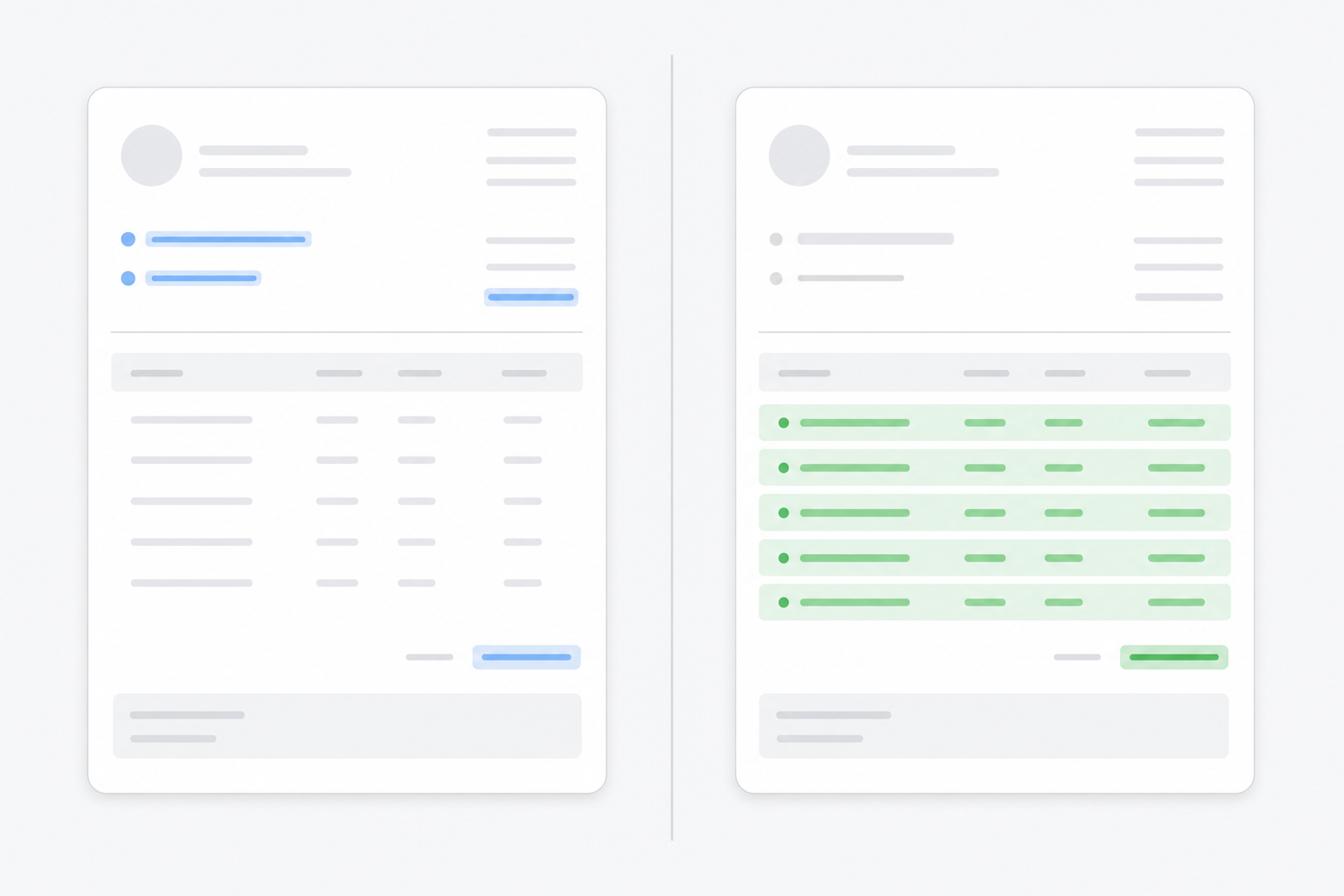
Header extraction is what most legacy OCR tools offer. Line item extraction is what accounting firms processing high volumes of complex supplier invoices actually need.
Picking the right tool comes down to matching your actual workflow beyond ticking boxes on a feature list. A few factors matter more than others.
Some tools connect to Xero natively and publish coded transactions directly to your ledger. Others export CSV files that you import manually. The difference in time per invoice is small; the difference across a month of invoices is not.
Header-only extraction (supplier, date, total) is table stakes. If your clients have multi-line invoices from suppliers in different countries, you need full line-item extraction with account code mapping built in.
Good AI document processing gets faster the more you use it. If a tool treats every invoice as a fresh problem, you're doing the same correction work forever.
Per-document fees add up quickly at volume. Look at how pricing scales against your actual monthly document count before committing.
If any of your clients receive invoices in non-Latin scripts, confirm the tool supports those languages natively before you sign up. "Supports multiple languages" in a feature list often means Latin alphabets only.
| Factor | What to check |
|---|---|
| Integration | Native Xero connection or CSV export only |
| Extraction | Line-item detail vs header and total only |
| Learning | Does accuracy improve with historical data |
| Pricing | Per-document, per-user, or flat monthly |
| Language coverage | Confirmed non-Latin script support |
Pricing for Xero OCR invoice processing varies widely across the tools available — Dext charges per document, Hubdoc bundles into Xero plans, and Tofu prices by firm. Xero itself does not charge separately for its built-in document capture, but that feature only extracts header-level data. For full line-item extraction, you need a third-party tool sitting in front of Xero.
Tools in this category price by document volume or by user seat, and costs range widely. Dext uses per-document pricing, AutoEntry charges by credit, and Hubdoc bundles into Xero plans:
The sticker price rarely tells the full story. Tools that charge per document can become expensive fast if your clients send high volumes of invoices each month. A firm processing 500 invoices monthly at $0.50 per document pays $250 before any base subscription fee.
Time is the other cost most pricing calculators ignore. If your tool extracts headers but leaves line items for manual entry, you are still paying staff to finish the job the software started.
Getting invoices into Xero accurately takes more than a scanner. You need to think through which tool handles extraction, how it connects to Xero, and what happens to the data after it lands.
There are two main setup paths most firms follow.
Xero's own app marketplace includes several OCR-based tools that connect directly via the Xero API. You authenticate once, map your chart of accounts, and the tool pushes extracted data into draft bills automatically. Setup typically takes under an hour for straightforward invoice types.
Tools like Tofu sit as a document processing layer before Xero. You upload invoices, the AI extracts every line item, applies your coding preferences, and publishes directly to Xero. The key difference here is that the AI learns your coding history over time, so accuracy improves the more you use it.
Regardless of which route you take, a few setup steps apply across the board:
A clean setup at the start saves a considerable amount of correction work later.
Deploying OCR for Xero rarely fails because the tech is wrong. It fails because inputs are inconsistent and the workflow stops at extraction without accounting for what happens when something goes sideways.
Standalone OCR accuracy sits at roughly 85-90% on clean digital documents. Human accuracy for data entry typically ranges between 96-99%. That gap closes fast when scan quality degrades. Low-resolution photos, angled scans, thermal receipts, or faded ink push error rates higher before the document reaches Xero. Standardizing how clients submit documents — PDF at 300 DPI minimum, straight scans over phone photos — eliminates most of these issues before the tool runs.
Suppliers don't design invoices for OCR tools. When a vendor switches billing software, the layout changes, and extraction fields can misread until the tool retrains on the new format. Review the first batch from any new supplier manually before trusting automatic extraction.
Some tools publish directly to Xero via API. Others produce a CSV you manually import. That extra handoff creates version control and formatting risk. Confirm native publishing behavior before signing up, not after.
No extraction tool runs at 100%. Build review into your standard workflow, not as a fallback. AI-powered confidence scoring flags low-certainty fields automatically, so your team focuses on the 5-10% of documents that genuinely need attention, not every field on every invoice.
When an extraction is flagged, a fast triage process keeps things moving. Check the confidence score first: fields marked as low-certainty are the ones that need eyes on them. Click the field, and a bounding box on the source document shows exactly where the AI read that value. Most corrections take under 30 seconds.
Common exception triggers include:
Each correction you make trains the AI. Fix a supplier's account code once, and the tool applies that preference automatically on every subsequent invoice from that supplier. Over time, your exception rate drops — the 5-10% that needed attention in month one becomes 2-3% by month six.
Xero handles bank feeds well, but bank statement processing is a different task. When clients send PDF bank statements, you still need to extract each transaction, map it to the right account, and publish it to Xero manually. That gap is where most firms lose time.
Tofu's AI document processing sits before Xero in your workflow. Upload a PDF bank statement, and Tofu extracts every transaction row, learns your coding preferences from past entries, and publishes directly to Xero via native integration. There's no retyping, no reformatting, and no manual account mapping after the first pass.
"What used to take me 3-4 hours can be done in 30-60 minutes." - Tammy Tan, Klozer
The time savings compound across a client base. If bank statement processing currently runs 2 to 4 hours per client each month, Tofu reduces that to under an hour for most firms. Across 20 clients, that's a meaningful recovery of billable capacity each month.
Any tool connecting to your accounting data needs to meet a basic security threshold before you commit. Look for AES-256 encryption at rest, TLS 1.3 in transit, and ISO 27001 certification, the international standard for information security management. These are non-negotiable. Every invoice your clients submit passes through a third-party system, and that data needs proper protection.
For audit readiness, source document auto-attachment is worth checking explicitly. When a posted Xero transaction carries the original PDF automatically, every entry has a retrievable audit trail with no separate filing step required. That matters when a client's books go under external review or tax authorities request supporting documentation.
Data residency and additional compliance certifications round out the checklist. GDPR-compliant tools host data within the EU. CCPA applies if any clients are California-based. Annual penetration testing by an independent security firm, not just self-reported compliance, signals that a vendor treats security as ongoing work rather than a box checked once at launch.
Tofu sits as the document processing layer between your incoming invoices and Xero. You upload a document, Tofu's AI extracts every line item, maps each one to your chart of accounts, and publishes the result directly to Xero via native integration. No retyping, no field-by-field entry.
Where traditional OCR tools stop at reading text, Tofu learns your coding preferences over time. The more invoices you process, the more accurately it predicts how you want each supplier and line item coded.
A few capabilities that set Tofu apart from the bill capture tools built into Xero:
One customer, Tammy Tan of Klozer, put it directly: "What used to take me 3-4 hours can be done in 30-60 minutes."
Tofu's native Xero integration means extracted data publishes without CSV uploads or copy-paste workarounds. Your chart of accounts syncs, your supplier records stay consistent, and your review queue reflects what actually came in.
Xero OCR invoice processing solves the data entry problem, but your choice of tool determines whether you're still typing line items manually or letting AI handle the entire invoice. Header-only extraction creates a bill shell, but someone still has to fill in the detail. For firms handling high volumes of complex supplier invoices, line-item extraction with account code learning is where the time savings actually show up. Your workflow improves when the tool remembers how you coded the last 50 invoices from the same supplier. Book a demo to see line-item extraction in action.
Xero's native document capture extracts header-level data (supplier name, date, total) but stops there; every line item still requires manual entry. For firms processing multi-line invoices, you need a third-party tool that extracts individual line descriptions, quantities, unit prices, and account codes automatically.
Xero's OCR handles clean, single-line bills reasonably well but lacks line-item extraction, multilingual support, and learning capabilities. Dedicated platforms like Tofu extract every line item, process 200+ languages including handwriting, and improve accuracy over time by learning your coding preferences, eliminating the manual work that Xero's native feature leaves behind.
Pricing varies widely by provider. Dext charges $50-$150 per month depending on volume, often with extra fees for line-item extraction. Hubdoc is free with some Xero plans but offers only header-level capture. Tofu charges flat monthly pricing starting at $199 for up to 50 clients, with unlimited users and full line-item extraction included — no per-document or per-user fees.
Header extraction captures supplier name, invoice date, and total amount — the minimum needed to create a bill in Xero. Line item extraction goes further, pulling each individual row including description, quantity, unit price, and account code. For a 20-line supplier invoice, header extraction leaves you typing 20 lines manually; line-item extraction codes all 20 automatically.
Native Xero add-ons typically take under an hour to set up — you authenticate, map your chart of accounts, and start processing. AI-powered tools like Tofu connect via the Xero API and start extracting immediately by learning from your historical coding patterns, with no manual rule configuration required. Most firms process their first batch of invoices within minutes of connecting.