Saman Herath
February 24, 2026

QuickBooks Desktop gives you two official ways to import bank transactions: Web Connect (.QBO files) and Direct Connect (subscription feed). Both fall apart when your bank only provides CSV exports or PDF statements. If you're working with regional banks or international institutions, you've probably hit this wall already.
I'm going to walk you through how to import bank transactions into QuickBooks Desktop when your bank doesn't play nice with Intuit's preferred formats, including the conversion tools and workarounds that actually save time instead of creating more work.

TLDR:
QuickBooks Desktop offers two ways to bring bank transactions into your books: Web Connect and Direct Connect.
Web Connect requires you to download a .QBO file from your bank's website, then import it into QuickBooks. You log into your online banking portal, find the export option, download the file, open QuickBooks, and manually load it in. Every time you need new transactions, you repeat the process.
Direct Connect pulls transactions automatically through a live connection between QuickBooks and your bank. It costs extra (subscription through Intuit) and only works with participating financial institutions.
Both methods share the same limitation: they only work when your bank supports them. If you're working with regional banks, credit unions, or international institutions, neither option may be available. Your bank might only offer CSV or PDF statements, which QuickBooks Desktop can't import directly without third-party tools.
QuickBooks Desktop accepts CSV files for importing lists like customers, vendors, and items. But when you try to import bank transactions from a CSV file, the option doesn't exist. This is different from OCR software for invoice processing, which handles document conversion automatically.
This catches bookkeepers off guard because CSV and Excel exports are what most banks provide. You log into your online banking, export transactions, and get a .CSV or .XLS file. You open QuickBooks Desktop expecting an import option, and there isn't one for transaction data.
The software only recognizes .QBO (Web Connect), .QFX (Quicken), or .OFX (Open Financial Exchange) formats for bank transactions. Intuit's official documentation confirms that CSV import requires third-party tools or workarounds.
This limitation creates real problems in markets where banks don't offer .QBO exports. Southeast Asia, Africa, Middle East, and parts of Europe routinely see CSV-only bank exports. Without conversion tools, bookkeepers in these regions type every transaction manually.
Log into your bank's online portal and locate the transaction export or download section. Look for a file format option labeled "Quicken" or "Web Connect," which produce .QBO files. Select your date range and download the file to your desktop.
Open QuickBooks Desktop and go to File > Utilities > Import > Web Connect Files. Navigate to your downloaded .QBO file and select it. QuickBooks will read the file and prompt you to choose which account these transactions belong to. Select the matching bank or credit card account from the dropdown.
The transactions appear in your register immediately. Review each line, match it to existing entries if needed, or categorize new transactions. QuickBooks marks imported transactions with a small icon so you can tell them apart from manually entered items.
This workflow assumes your bank offers .QBO downloads. If your bank only provides PDF statements or CSV files, Web Connect won't work without converting the file format first.
Third-party conversion tools like CSV2QBO, BigRedCloud, and Bank2QBO convert CSV files into .QBO format that QuickBooks Desktop accepts. Most charge between $20-$50 per year for basic conversion. You upload your CSV file, map the columns (date, description, amount, transaction type), then download the converted .QBO file to import.
The other workaround is IIF (Intuit Interchange Format). QuickBooks Desktop accepts IIF files for transaction imports, but you'll need to format your CSV data to match Intuit's exact column structure and naming conventions. Invoice data extraction software handles these formatting requirements automatically. One misaligned header breaks the import.
Both methods add friction. Small businesses spend roughly 124 hours annually on bookkeeping tasks, and manual formatting or repeated file conversions account for a chunk of that time. You're not doing accounting work when you're reformatting spreadsheets.
When your bank only provides PDF statements, you're typing transactions line by line unless you use extraction tools that convert PDF bank statements into structured transaction data ready for import.
QuickBooks Desktop throws "Select an account to download into" prompts when the .QBO file's account information doesn't match any existing account in your file. This happens when account names or numbers differ slightly between your bank export and your QuickBooks setup. You'll need to manually match the incoming transactions to the correct account or create a new one.
"This file is not a valid Web Connect file" errors appear when CSV files are renamed to .QBO without actual format conversion. QuickBooks checks the internal file structure, not just the extension. Renaming doesn't work. You need proper conversion tools or third-party import utilities.
OL-301 and OL-393 error codes signal connectivity failures with Direct Connect. These usually require deactivating the bank feed, clearing cache files, and reconnecting. Each fix adds 15-30 minutes of troubleshooting time per occurrence.
Direct Connect only works with banks that have agreements with Intuit. That list skews heavily toward US, Canadian, UK, and Australian institutions. If your clients operate in Malaysia, UAE, South Africa, or Indonesia, bank feed connections often don't exist.
Web Connect depends on your bank offering .QBO file exports. Regional banks and credit unions in these markets typically provide PDF statements or CSV downloads instead. QuickBooks Desktop can't read either format without conversion tools.
This forces a choice: reject clients whose banks aren't supported, or accept them and manually type every transaction. Firms trying to scale internationally hit this wall repeatedly. Some firms switch to alternatives like Puzzle.io, but geographic limitations persist.
The workaround is PDF or CSV extraction. Tools that convert bank statement PDFs into transaction-level data eliminate the geographic limitation. You're no longer dependent on whether Intuit supports your client's bank.
Open QuickBooks Desktop and go to Reports > Banking > select your account register report. Set your date range, then click Excel at the top toolbar and choose Create New Worksheet. QuickBooks exports the visible transactions to Excel format.
The export includes date, transaction type, number, payee, memo, and amount columns. But it strips formatting when Excel isn't installed locally, and grouped transactions lose their line-item breakdowns. You get the total, not the detail behind it. If you're moving transactions between systems regularly, this manual workflow becomes a bottleneck fast.
Bookkeepers spend roughly 3 hours per week per client on bookkeeping services. When CSV or PDF bank statements require manual entry, that time explodes.
A 50-page bank statement with 30 transactions per page means 1,500 lines. Typing each transaction (date, description, amount, account code) takes 30-45 seconds per line. That's 12-18 hours of work for one statement. At $40 per hour, you're looking at $480-$720 in labor cost for a single client document.
Firms handling 20 clients face a choice: hire more staff or turn away clients. If your bookkeeper earns $3,200 monthly and spends 60% of their time on data entry instead of review work, you're paying $1,920 per month for typing that could be automated.
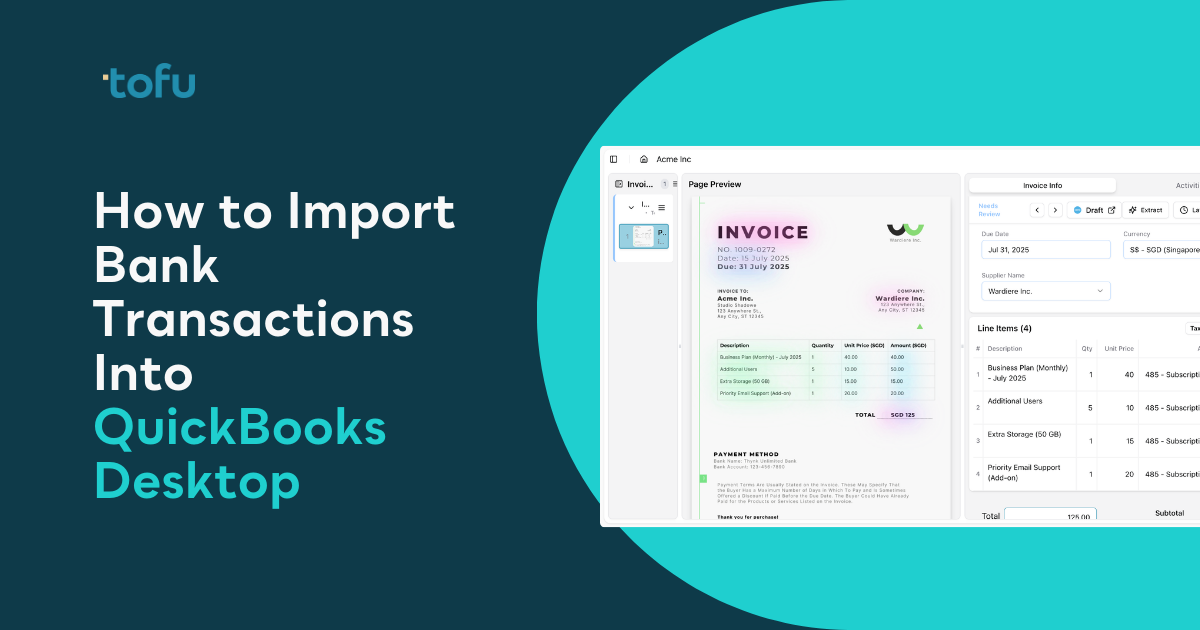
Tofu reads bank statement PDFs from any bank and converts them into structured transaction data that imports directly into QuickBooks Desktop. You upload the PDF, review the extracted transactions, and export to CSV or IIF format in minutes.
The workflow bypasses QuickBooks' .QBO requirement. When your bank only provides PDF statements, you're not stuck typing line by line anymore. Elizabeth Simon, who runs Zattus Accounting in Namibia, processes bank statements that used to take three days in under five minutes now.
Click any extracted transaction and the PDF zooms to show exactly where the data came from. That bounding box verification means you're not trusting the AI blindly.
Tofu works on statements in 200+ languages and learns your account coding patterns over time. When you correct a transaction once, the system remembers. Future statements from the same bank or vendor type code automatically based on your firm's history.
Regional banks and international clients shouldn't force you to choose between manual entry and turning away business. Importing bank transactions into QuickBooks Desktop works smoothly when you can convert any PDF statement into the format QuickBooks accepts. Tofu handles that conversion automatically, learning your coding preferences as you work. Your firm gets faster processing times and your bookkeepers get their weekends back.
No, QuickBooks Desktop doesn't accept CSV files for bank transaction imports. The software only recognizes .QBO, .QFX, or .OFX file formats for banking data. You'll need a conversion tool to transform CSV files into one of these accepted formats before importing.
You have three options: use a CSV-to-QBO conversion tool ($20-$50 annually), format your data as an IIF file manually (requires exact column matching), or use document extraction tools like Tofu that convert PDF bank statements into importable transaction data regardless of which bank you work with.
A 50-page bank statement with 30 transactions per page means 1,500 lines of data entry. At 30-45 seconds per transaction, you're looking at 12-18 hours of work for one statement. That translates to $480-$720 in labor cost at $40/hour for a single client document.
This error appears when you rename a CSV file to .QBO without actually converting the internal file structure. QuickBooks checks the file format itself, not just the extension. You need proper conversion tools that restructure the data, not just rename the file.
Use PDF extraction tools that work with any bank format in any language. Tofu reads bank statement PDFs from any institution worldwide and converts them to structured transaction data in minutes, bypassing QuickBooks Desktop's geographic limitations with Direct Connect and Web Connect.