SunTao Lai
May 28, 2026

The promise of Xero document automation is simple: upload a document, let the software read it, and move on. In practice, Xero's built-in capture reads header totals well but struggles with anything beyond that. A 25-line supplier invoice from an overseas vendor shows up as a half-empty draft that still needs considerable manual correction. Bank statements as PDFs don't import at all without a manual conversion step. Xero handles your ledger, but it was never designed to handle the messy, varied documents that come before the ledger. Knowing what Xero does natively and what it doesn't is where this guide starts.
TLDR:
Xero document automation refers to using AI and software integrations to extract, code, and publish financial documents into Xero without manual data entry. Instead of opening a PDF invoice and typing each field by hand, automation reads the document and pushes the data directly into your Xero ledger.
The documents involved typically include supplier invoices, receipts, and bank statements. Each one requires the same repetitive work: supplier name, date, amount, line items, account codes. Automation handles that work so you can focus on reviewing and approving, instead of entering.
Xero includes several built-in tools that reduce repetitive bookkeeping tasks before you ever consider adding anything else to your workflow.
The most widely used is Xero's bank feed connection. Once linked, your bank transactions flow into Xero automatically each day. From there, Xero's rules engine lets you set conditions so recurring transactions get categorized without manual input. A monthly software subscription from the same vendor, for example, can be automatically coded to the correct account every time it appears.
Xero also includes a native document capture feature for invoices and bills. You can email documents directly to a dedicated Xero inbox, or upload them through the mobile app. Xero then attempts to read the key header fields: supplier name, date, and total amount.
The extraction works reasonably well for clean, single-page PDFs from known suppliers. Where it runs into trouble is with multi-line invoices, non-standard layouts, documents in non-Latin scripts, and anything handwritten. Line items frequently require manual correction, and account code suggestions depend heavily on your transaction history with that supplier.
For predictable billing cycles, Xero supports repeating invoices that generate automatically on a schedule you define. Purchase order matching is available on higher-tier plans, letting you match bills against existing purchase orders before approving payment.
These features cover the straightforward end of document volume well. The gap appears when document variety increases: different suppliers, different formats, different languages, and high per-invoice line counts are where Xero's native capture starts to slow you down rather than speed you up.
Invoices and receipts are where most of the manual work lives in Xero.
Recent industry data shows that only 32.6% of invoices are currently processed without any human intervention, indicating that most finance teams still have considerable room to reduce manual touchpoints.
Xero's built-in capture tools handle the basics well. They can read a header total and populate a few fields. But they were built for simple documents, and most real-world invoices are not simple. Multi-line supplier invoices, receipts in foreign languages, handwritten documents, and non-standard formats regularly fall through the gaps and land back on your desk for manual review.
This is where purpose-built AI document processing fits. Tools like Tofu sit upstream of Xero, extracting every line item from an invoice before publishing the result directly to your Xero account. The AI learns your chart of accounts, your suppliers, and your coding preferences over time, so each document processed gets faster and more accurate.

There is a meaningful difference between reading a document and understanding it. Basic extraction reads text off a page. Proper AI-powered extraction maps each line item to the right account code, recognises the supplier from previous transactions, flags exceptions for review, and publishes a complete, coded transaction to Xero. Document automation saves $8 to $12 per document compared to manual workflows.
A few capabilities worth looking for:
Bank statements sit at the heart of any reconciliation workflow, and Xero gives you several ways to get them in.
The most direct route is a live bank feed. Xero connects directly to hundreds of banks across Australia, New Zealand, the UK, the US, and beyond, pulling transactions automatically each day so your reconciliation queue stays current without manual uploads.
Where a live feed isn't available, you can import a statement file manually. Xero accepts OFX, QFX, CSV, and QBO formats, which covers most banks that export transaction history.
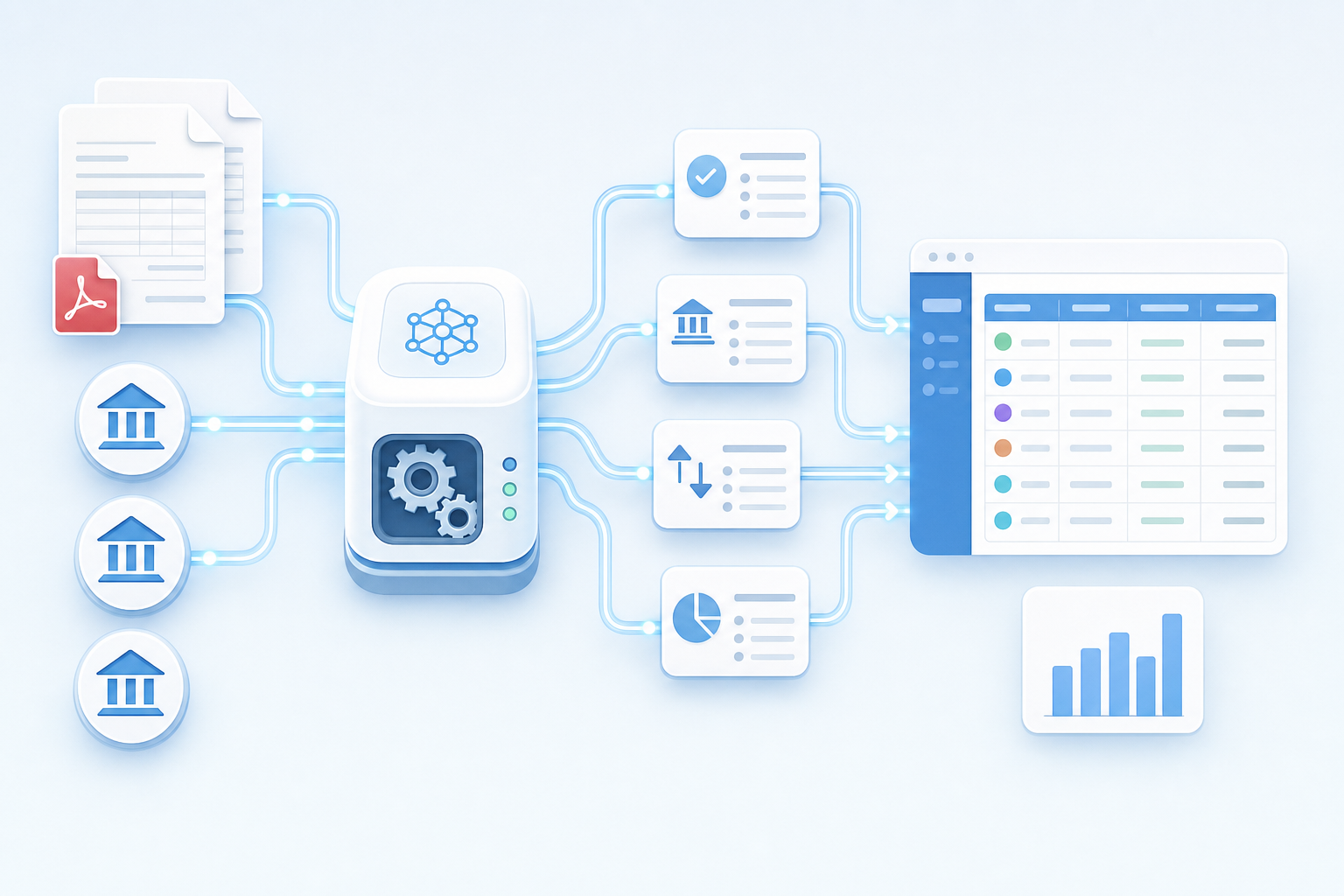
Flat transaction data is one thing. The problem most firms hit is that bank statements arriving as PDFs from clients don't slot neatly into either option above. A scanned statement from a regional bank, a foreign currency account summary, or a multi-page PDF from a client who doesn't do online banking all require something beyond Xero's native import tools.
That's where a document processing layer helps. Tofu extracts transaction data from PDF bank statements, including scanned and image-based files, and publishes the structured data to Xero without manual re-keying. It works alongside Xero and does not replace anything Xero already does well.
Xero's built-in automation covers the basics, but most accounting firms eventually hit its limits. That's where third-party integrations come in, handling the document-heavy work that Xero was never designed to do on its own.
| Tool | Line-item extraction | Language support | Pricing model | Setup time per client | Learning capability |
|---|---|---|---|---|---|
| Tofu | Full line-item extraction included at no extra charge. Reads every line from invoices with 10, 20, or 50+ lines and maps each to your chart of accounts. | 200+ languages including handwriting, non-Latin scripts, and mixed-language documents without manual translation. | Flat pricing with no per-document fees. Unlimited users included. Covers ~50 clients at $199/month. | 15 minutes per client. AI reads your existing Xero coding history and builds from there. | Learns from your corrections over time. Coding accuracy improves with each document you process without building manual rules upfront. |
| Dext | Limited line-item extraction. Additional cost for line-item data. Works well for basic receipt capture but requires manual intervention for complex invoices. | Supports major European languages. Limited support for non-Latin scripts and handwritten documents. | Per-document pricing that scales up quickly at higher volumes. Per-user seat fees apply. | Requires manual rule setup before first use. Configuration time varies by client complexity. | Rule-based system. You build and maintain categorization rules manually rather than AI learning from approvals. |
| AutoEntry | Basic OCR extraction covers header and total data. Line-item support available but limited compared to AI-native tools. | Supports English and major European languages. Non-English accuracy varies by document quality. | Per-document pricing. Costs increase directly with processing volume across your client base. | Standard setup process. Rules and coding preferences configured manually per client. | Template-based extraction. Works well for recurring suppliers but requires manual templates for new document formats. |
Tofu is an AI document processing layer built for accounting firms. You upload invoices, receipts, and bank statements, and Tofu extracts every line item, maps each to your chart of accounts, and publishes directly to Xero via native integration.
Where Xero's document capture stops at header-level data, Tofu goes line by line. It reads documents in 200+ languages, learns your coding preferences over time, and gets faster and more accurate the more you use it. Handwritten receipts, multi-currency invoices, documents from suppliers in dozens of countries, Tofu handles all of it.
As Tammy Tan from Klozer put it: "What used to take me 3-4 hours can be done in 30-60 minutes."
Setup takes minutes per client, and there are no per-document fees.
Dext (formerly Receipt Bank) is one of the more widely used document capture tools in the Xero add-on market. It extracts header and total data from receipts and invoices and pushes records to Xero. It works well for high-volume receipt capture, though line-item extraction and multi-language support are limited compared to Tofu.
AutoEntry handles invoice and bank statement capture with a Xero integration. It's a reasonable option for firms that need basic OCR extraction without complex coding rules. Per-document pricing can add up quickly at higher volumes.
Getting invoice automation working in Xero doesn't require a long setup window. The core process runs in three phases, and getting each one right saves meaningful correction time later.
Xero's native email inbox covers basic header capture for clean single-page PDFs. If your invoices include multiple line items, non-English suppliers, or irregular document formats, connect an upstream extraction tool before documents reach Xero. The extraction layer handles the complexity; Xero receives clean, coded data.
On initial connection, most extraction tools read your Xero coding history and build from there. Focus manual setup time on your highest-frequency suppliers first. Getting those 20 or so vendors coded correctly covers the bulk of your document volume before you process a single new invoice.
Start with draft posting rather than auto-publish. This gives you a review window to catch miscoded line items before they post to your Xero ledger. Once you've processed enough documents to trust the extraction accuracy for a given supplier, you can shift that supplier to auto-publish and reduce the review queue accordingly.
Xero bank rules match on three conditions: payee name, description text, or transaction amount. When an imported transaction hits a match, Xero auto-categorizes it and can clear it without you touching it.
Setup is quick. Find a transaction in your feed, click "Create rule," define your conditions, and assign the account code. Rules can apply across all connected accounts or a single feed, and you can stack multiple conditions to prevent false matches on similar-looking transactions.
The payoff builds over time. Once your recurring payees have rules covering utilities, subscriptions, payroll, and rent, roughly 80% of monthly transactions categorize on their own. That cuts manual review time from each session, and it compounds across a full client portfolio month after month without any additional setup on your end.
Most Xero automation problems don't come from the tools themselves. They come from configuration gaps that are easy to miss on setup and annoying to untangle later.
A few patterns that come up repeatedly:
The quickest diagnostic for any Xero automation problem is to isolate where in the chain things broke: document upload, extraction, coding, or publish. Each failure looks different, and knowing which stage failed tells you exactly where to intervene.
Accounting firms that get the most out of Xero automation tend to follow a few patterns worth knowing.
Most start by automating their highest-volume document type first, usually supplier invoices, then expand to receipts and bank statements once the workflow is stable. This staged approach keeps errors contained and gives staff time to build confidence before taking on more complexity.
Larger firms often assign a dedicated workflow owner who sets coding rules, reviews exception queues, and keeps the chart of accounts mapping current. Without that ownership, automation rules drift and manual intervention climbs back up.
Xero handles the ledger. What it was never built to do is extract every line item from a supplier invoice, map it to the right account code, and publish it ready for review. That gap is where tools like Tofu sit.
Tofu works alongside Xero as the document processing layer that runs before data ever reaches the ledger. You upload invoices, Tofu extracts every line item, applies your coding rules, and publishes directly to Xero for review. The AI learns from your approvals over time, so coding accuracy improves the more you use it.
For firms processing high document volumes across multiple clients, this matters. What used to take 3-4 hours can be done in 30-60 minutes, according to Tofu customer Tammy Tan from Klozer.
Tofu connects directly to Xero via a native integration, so every document you process publishes straight to your Xero ledger without manual re-entry.
The workflow is straightforward. You upload invoices, receipts, or bills to Tofu. The AI extracts every line item, reads the supplier name, matches the date and amounts, and maps each line to your chart of accounts based on your coding history. Once you review and approve, it publishes to Xero automatically.
A few things make this worth paying attention to:
Xero itself handles the ledger. Tofu handles the document layer that sits before it. The two work alongside each other instead of one replacing the other.
The gap in most Xero setups isn't the software itself, it's the manual work that happens before data reaches your ledger. Xero document automation fills that gap by reading every line item, coding each to your chart of accounts, and publishing straight to Xero without re-keying. Your native Xero tools stay in place. You just stop typing invoices. See it work on your documents in a quick demo.
Yes, but you'll be limited to basic header extraction and bank feeds. Xero's native features handle repeating invoices, bank rules, and simple document capture well, but they weren't built for multi-line invoices, non-English documents, or high-volume processing where line-item detail matters. For anything beyond straightforward single-page PDFs, you'll need a document processing layer like Tofu that extracts every line item and publishes directly to your Xero ledger.
Xero's native capture reads header fields like supplier name, date, and total amount from clean PDFs. AI document processing goes deeper: it extracts every line item, maps each to your chart of accounts, learns your coding preferences over time, and handles documents in 200+ languages including handwriting. Xero handles the ledger; tools like Tofu handle the document layer that sits before it.
Setup with an AI extraction tool like Tofu takes around 15 minutes per client. You connect your Xero account, the tool reads your existing chart of accounts and coding history, and you're processing documents immediately. The AI learns from your corrections as you go, so accuracy improves the more you use it without building manual rules upfront.
Tofu extracts every line item automatically at no extra charge, processes documents in 200+ languages including handwriting, and uses flat pricing with unlimited users. Dext charges extra for line-item extraction, requires manual rule setup before first use, and uses per-document pricing that scales up fast. For firms processing high volumes across multiple clients, Tofu costs about 1/6th the price of Dext while covering 5x the clients.
Yes. You upload PDF bank statements — any bank, any format, any length — and Tofu extracts every transaction with date, description, amount, and debit/credit classification, then publishes directly to Xero. This works alongside Xero's bank feeds for clients who send scanned statements or use banks without live feed connections, handling the document-to-data gap that Xero's native import tools don't cover.