Jay Sen Lon
March 2, 2026

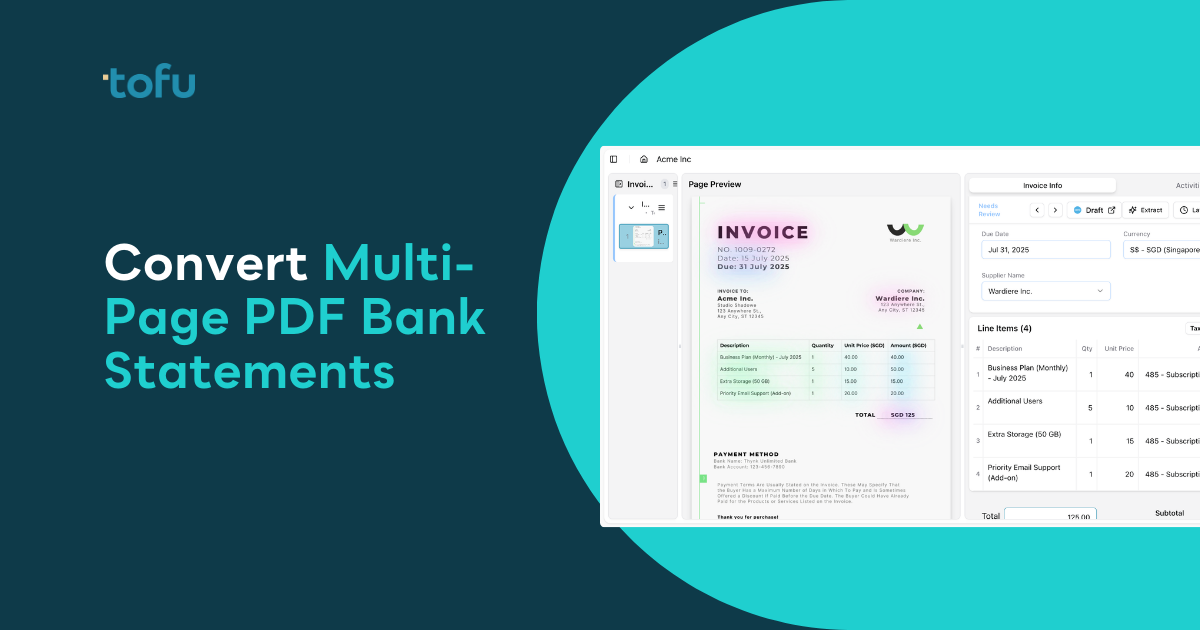
When a client sends you a 30-page bank statement PDF, you need more than a basic converter. Generic tools export the first page fine, but by page 12 your data structure falls apart completely. Bank statement to CSV converters handle multi-page documents differently, and some skip the conversion step entirely by publishing directly to your accounting software. I'll walk through four conversion methods so you know exactly which one fits your volume and client base.
TLDR:
A single bank statement doesn't feel expensive to process, but the math adds up. Bookkeeper hourly rates range from $40 to $100 depending on experience and location, with a national median of $23.66. A 50-page bank statement with 200+ transactions takes 2 to 3 hours to manually enter. That's $70 to $300 in labor cost per statement. Per client. Per month.
Most firms process 5 to 20 bank statements monthly. At the conservative end, that's $350 in hidden labor cost. At volume, it's $6,000 a month spent typing numbers that already exist in a document.
Most accounting firms think they either type bank statements manually or pay for a converter. The reality is more complex. Bank statement processing breaks into four distinct levels, and most tools stop at Level 3.
Level 0 is manual typing. Open the PDF, type every transaction into your accounting software. Date, description, debit, credit. Line by line. This is still the default for many firms.
Level 1 is copy-paste. Select text in the PDF, paste into Excel, clean up formatting errors, split merged columns, delete headers that repeat across pages. Faster than typing but still manual.
Level 2 is generic PDF converters. Tools like Smallpdf or Adobe export the PDF to Excel. You get a spreadsheet, but the structure is broken. Dates and amounts scatter across wrong columns. Headers from every page mixed into data rows. Requires heavy cleanup.
Level 3 is dedicated bank statement converters. Tools like DocuClipper and Rocket Statements recognize bank statement formats and output clean transaction tables. This is where most "automation" stops. You get a CSV, but you still copy-paste it into Xero or QuickBooks.
Level 4 is full AI bookkeeping automation. Tools like Tofu extract transactions and publish directly into your accounting software with categorization, duplicate detection, and source document attachment. No CSV export. No copy-paste. Upload to posting in one workflow.
| Level | Method | Process | Output | Manual Work Required |
|---|---|---|---|---|
| 0 | Manual Typing | Open PDF and type each transaction into accounting software | Direct entry | 100% manual - 2-3 hours per statement |
| 1 | Copy-Paste | Select text from PDF, paste into Excel, clean formatting | Messy spreadsheet | High - formatting cleanup, column splitting, header removal |
| 2 | Generic PDF Converters | Tools like Smallpdf or Adobe export PDF to Excel | Broken spreadsheet | High - extensive cleanup, column reorganization, manual import |
| 3 | Bank Statement Converters | Dedicated tools like DocuClipper extract clean transaction tables | Clean CSV file | Medium - manual import, column mapping, account coding, duplicate checking |
| 4 | Full AI Automation | Tools like Tofu extract and publish directly to accounting software | Posted transactions with source PDFs | Minimal - review and approve |

Bank statements look like simple tables, but they break most PDF converters. Every bank uses a different layout. Some put dates in the first column, others start with descriptions. Transaction rows often span multiple lines when descriptions are long, causing converters to split one transaction into three separate rows.
Headers and footers repeat on every page. A 20-page statement has 20 copies of "Date | Description | Debit | Credit" mixed into your extracted data. You spend more time deleting header rows than you saved on extraction.
Merged cells create chaos. Banks merge balance columns or subtotal rows, and converters dump that data into random cells. Your closing balance ends up in the description column three rows down.
Scanned statements add another layer. If the bank PDF is an image instead of selectable text, generic converters return nothing.
Tools like Smallpdf, Adobe Acrobat, and PDFtables.com follow the same pattern: upload your PDF, click export, download a spreadsheet. The conversion finishes in seconds. The cleanup can take 30 minutes or more.
The output looks like a table, but the structure breaks down fast. Transaction amounts shift between columns. Multi-line descriptions split across rows, turning one transaction into several. Page headers appear as data rows, so you delete "Date | Description | Debit | Credit" repeatedly before reaching actual transactions.
These converters work best for single-page statements with simple grids and selectable text. A one-page credit card statement with 10 transactions exports cleanly. A 20-page business checking account with subtotals and varying layouts becomes a repair job.
Dedicated bank statement converters solve the formatting issues generic tools miss. DocuClipper and Rocket Statements handle multi-page documents, repeated headers, and varying bank formats without breaking table structure.
DocuClipper ranks as the top-rated bank statement extraction tool on G2 with a 4.8/5 rating and claims 99.6% accuracy. Pricing starts at $39 per month for 200 pages. Rocket Statements offers a similar model with a Google Sheets add-on for direct import after extraction.
Both export clean CSV files formatted for QuickBooks or Xero. The extraction step is solved, but you still download a file, open your accounting software, and import manually.
Per-page pricing breaks down when you scale. A single client with 5 bank accounts sending 20-page statements monthly generates 100 pages. Two clients like that and most converters push you into higher tiers.
The math gets worse for growing firms. Processing 20 clients averaging 30 pages each means 600 pages monthly. Fifty clients means 1,500 pages. Your converter cost triples while you still download CSVs and import them manually into your accounting software regardless of plan tier.
Start with your PDF file. If it's password-protected, remove the password first. Most converters reject secured files. For scanned statements, check that text is readable and selectable. Blurry scans produce garbage output.
Upload to a Level 3 converter. The tool detects columns and strips repeated headers automatically. Processing takes 30 seconds to 2 minutes depending on page count.
Review the output before downloading. Verify opening and closing balances match your source document. Spot-check the first five and last five transactions for accurate dates and amounts.
Download as CSV or Excel. Open your accounting software and run the manual import. Map columns to match your system's required fields: date, description, debit, credit.
This workflow works, but you're still copying data from one system to another.
Bank statement converters give you a CSV file. The rest of the work is still yours. Import the file into your accounting software, map each column to the correct field, assign account codes to every transaction, check for duplicates against existing entries, and manually attach the original PDF for audit trails.
For one statement, this takes 10 to 15 minutes after extraction. For a firm processing 30 clients monthly, that's 5 to 7.5 hours spent moving data from CSVs into accounting software. The conversion solved 30% of the job. The other 70% is still manual.
Level 4 tools close this gap by handling extraction, categorization, duplicate detection, and direct posting to your accounting software in one workflow. You upload the PDF. The system publishes coded transactions with source documents attached. No CSV download. No import mapping.
One bank statement converted to CSV is manageable. Twenty clients with multiple accounts each month turns into 5 hours of repetitive imports.
Volume surfaces problems single conversions hide. Each client has different chart of accounts structures. The same "office supplies" transaction codes differently across entities. CSV converters give you raw data with no memory of how you coded it last month.
Duplicate detection becomes critical. When a client emails the same statement twice, converters re-extract everything. You catch duplicates manually or post them twice. Staff turnover erases coding knowledge.
Full AI bookkeeping automation treats bank statement processing as part of bookkeeping, not document conversion. The system reads your existing general ledger or pulls coding history from your connected accounting software. It learns how you categorize transactions without rule-building.
Duplicate detection runs before posting, not after. The system flags when the same statement or date range has already been processed.
Transactions publish directly into Xero or QuickBooks with the source PDF attached to each entry. No CSV download. Knowledge persists across staff changes. When a bookkeeper leaves, their coding decisions remain accessible.
Bank statement conversion gets you halfway. You still download CSVs, import them manually, map columns, assign account codes, and attach source documents. For firms processing 20+ clients monthly, that's still hours of repetitive work.
Tofu handles the full workflow. Upload any bank statement PDF (any bank, any format, any length) and the system extracts every transaction, learns your chart of accounts automatically, and publishes directly to Xero or QuickBooks with source documents attached. No CSV export. No import mapping. No per-page fees.
Processing bank statements drops from 30 minutes to under 5. One firm in Malaysia cut statement processing from 30 minutes per client to 2 minutes. Another firm in Namibia called it the best app.
Flat pricing starts at $79/month with unlimited users.
Converting multi-page bank statements to Excel solves the formatting chaos but you still download CSVs and import them manually into your accounting software. For one statement that's manageable. For a firm processing 30 clients monthly it's 5 to 7 hours of work after extraction. Tofu handles the full workflow from PDF upload to coded transactions posted in Xero or QuickBooks. Flat pricing starts at $79 monthly with no page limits.
Processing drops from 30 minutes to under 5 minutes per statement. One firm in Malaysia cut their time from 30 minutes to 2 minutes after switching to Tofu.
Level 3 tools like DocuClipper give you a clean CSV file that you still need to import manually, map columns, assign codes, and attach source documents. Level 4 tools like Tofu extract transactions and publish directly into your accounting software with categorization and source documents attached automatically.
Yes, Tofu processes bank statements from any bank, any format, and any length. Tested on statements over 1,000 pages long without requiring templates or configuration.
When you scale past 10-20 clients with multiple accounts, a firm processing 20 clients averaging 30 pages each hits 600 pages monthly, pushing most converters into higher pricing tiers while you still handle imports manually.
No, Tofu publishes transactions directly into your accounting software with the source PDF attached to each entry. No CSV download, no import mapping, no manual file attachment.