SunTao Lai
May 28, 2026

Your Xero invoice data entry automation reads the invoice header and quits. Supplier name, date, and total get filled in. Then you see 35 line items waiting for manual entry because header-only tools were never built to go deeper.
TLDR:
Xero invoice data entry automation is the process of extracting data from supplier invoices and posting it directly into Xero without manual typing. A document gets uploaded, software reads the content, and the extracted data appears in Xero as a bill or expense — coded to the correct account, supplier matched, ready for review.
The catch is that "automation" covers a wide range of capability. Header-only capture pulls the supplier name, invoice date, and total amount, then stops. If your invoice has 20 line items, you're still opening Xero and typing every one of them by hand. That's not an automated workflow; that's a slightly faster document preview.
True automation goes all the way through: every line item extracted with descriptions, quantities, unit prices, and account codes, then posted directly to Xero with no re-entry required. The bookkeeper's job moves from typing data to reviewing what the software already captured.
The distinction matters because many tools advertise "automation" while only delivering the first option.
Manual invoice data entry in Xero is one of the most time-consuming tasks in any accounting firm's workflow. A supplier sends a PDF, and someone on your team opens it, reads it, and types every field into Xero by hand: supplier name, invoice date, due date, amount, and each individual line item. Multiply that by dozens or hundreds of invoices per month, and the hours add up fast.
The cost goes beyond time. Manual entry introduces errors that can take longer to find and fix than the original entry took to complete. A transposed number, a wrong account code, a missed line item: these mistakes quietly compound until reconciliation becomes a problem.
Automating that process changes the math entirely.
By 2026, firms running invoice automation are processing documents in a fraction of the time it previously took. Research shows that automating accounts payable can reduce invoice processing costs by up to 80% compared to fully manual workflows. For busy firms handling high invoice volumes, that difference is the gap between month-end being manageable and being genuinely painful.
There are a few specific reasons firms are moving in this direction now:
Automation handles the repetitive extraction work so your team can focus on the parts of accounting that actually require judgment.
When you upload an invoice to a Xero-connected tool, a few things happen in sequence. The document gets parsed, key fields get extracted, and the data gets pushed into Xero through its API. For simple invoices with a header, a total, and a tax line, that handoff works well. The friction appears when invoices carry dozens of line items, non-Latin characters, or supplier names Xero has never seen before.
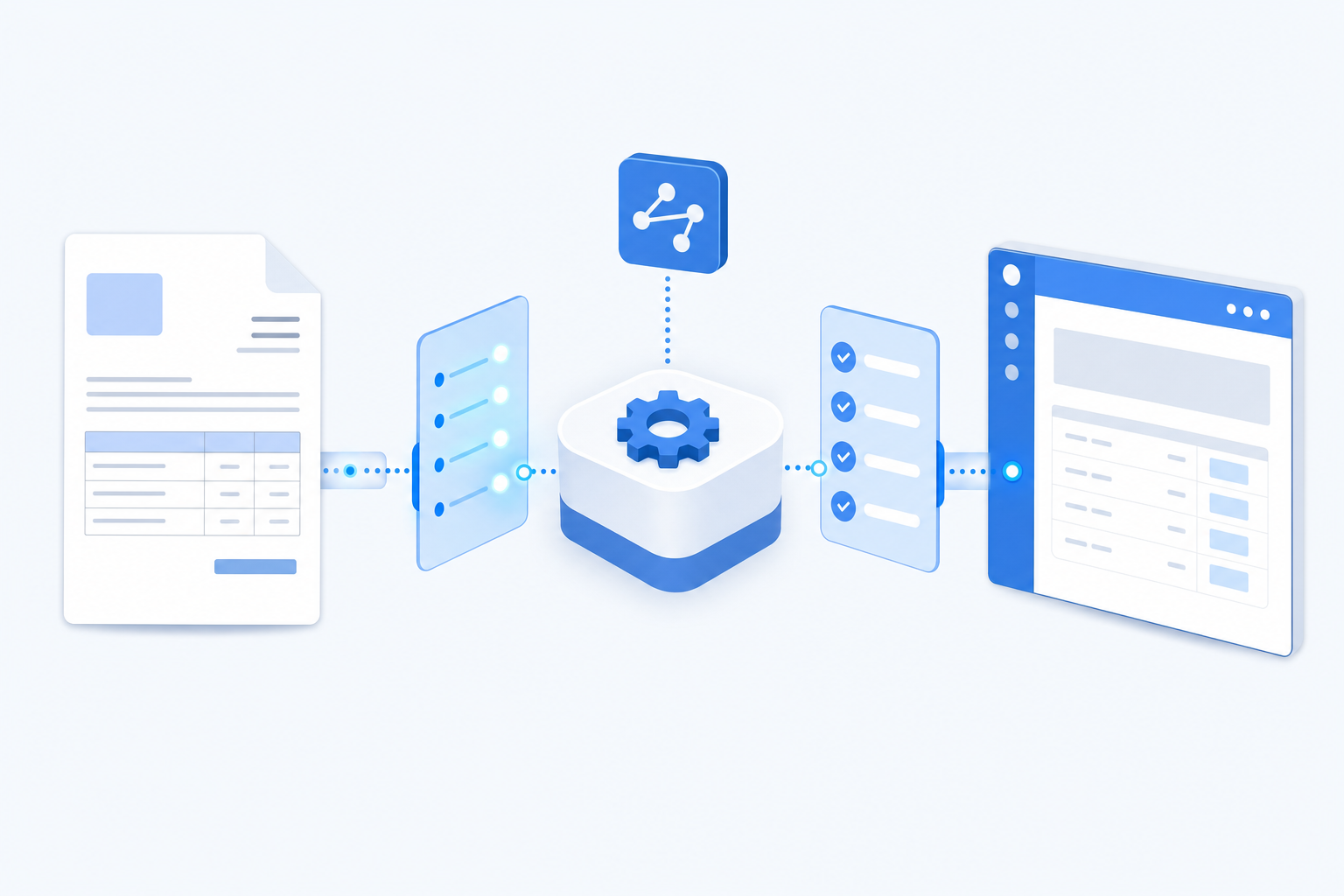
Xero's API accepts structured invoice data: contact name, date, due date, line items with descriptions, quantities, unit prices, and account codes. Every field has to be mapped correctly before the push. If a supplier name doesn't match an existing contact, Xero either creates a duplicate or rejects the record. If an account code is missing, the line item posts to a suspense account and waits for manual correction.
The mapping step is where most automation tools fall short. They read the invoice, but they don't learn how you code it.
AI-driven tools add a learning layer between document parsing and the API call. Instead of applying the same rules to every invoice, the system observes how you've coded similar documents in the past and applies that logic automatically. Over time, it gets the account codes right, it recognises returning suppliers, and it handles edge cases your rule-based setup would have sent to the exceptions queue.
The result is that the data arriving at Xero's API is already structured the way your chart of accounts expects it, with fewer corrections needed after the fact.
When reviewing tools that handle Xero invoice data entry automation, a few capabilities consistently separate the ones that save time from the ones that create new problems.
Look for tools that extract full line items beyond header fields like supplier name and total. If a tool only captures the invoice total, you still need to manually code every line, which defeats the purpose.
The best tools remember how you coded similar invoices before and apply that logic automatically. This matters most when you have dozens of clients with different chart of accounts setups.
Supplier invoices arrive in many formats and languages. A tool that handles only Latin-alphabet PDFs will break down the moment a client works with overseas suppliers.
Check whether the tool publishes directly to Xero with correct tax codes, account codes, and tracking categories, or whether it drops data into a staging area that requires manual review before anything hits the ledger.
No automated tool is perfect. The better ones flag low-confidence extractions for human review rather than silently publishing incorrect data. That transparency is what keeps your books clean.
Per-document pricing adds up fast for high-volume firms. Look for subscription models with predictable monthly costs so you can pass through a flat rate to clients without margin surprises.
Getting invoice automation working in Xero takes a few deliberate steps, but the setup is straightforward once you know what to connect and in what order.
Start by choosing how invoices reach Xero. You can forward supplier emails directly to your Xero inbox, upload PDFs manually through the Xero dashboard, or connect a third-party tool that feeds extracted data into Xero automatically. The third option is where most firms land when volume grows past what manual uploads can handle.
Before invoice automation in Xero runs reliably, your chart of accounts needs to reflect how you actually code invoices. Automation tools learn from your coding history, so inconsistent account codes early on produce inconsistent suggestions later. Spend time here before processing your first batch.
Once documents are extracted and coded, Xero holds them in a draft state for your review. This is the quality gate where you confirm account codes, GST treatment, and supplier details before publishing to the ledger. Most firms keep this review step in place even with full automation running.
Tools like Tofu sit before Xero in the workflow. Tofu extracts every line item from uploaded invoices, applies your preferred account codes based on past behaviour, and publishes directly to Xero through a native integration. The setup takes around 15 minutes per client, and the AI learns your coding preferences over time so suggestions improve with each document processed.
No automation tool operates at 100% accuracy. Traditional OCR-only extraction achieves 85-95% accuracy on structured invoice fields. AI-based extraction pushes that to 97-99% by learning from corrections rather than applying static rules. Independent benchmarks confirm AI-based systems outperform OCR on inconsistent layouts and real-world documents.
That gap compounds quickly. At 90% accuracy on a 100-line invoice, you're correcting 10 fields. At 98%, you're correcting 2. Across hundreds of invoices a month, the difference adds up fast, and correction work starts to feel like its own job.
Field-level confidence scoring is what makes exception handling practical. Good tools flag the specific fields where extraction certainty is low, such as an ambiguous account code, an unrecognized supplier name, or a tax rate that differs from the same vendor's historical entries, rather than routing entire documents for manual review.
The review queue stays manageable when you split documents by confidence level:
That split is what keeps your books accurate without turning automated invoice capture exception handling into a second data entry job.
Automating invoice data entry in Xero pays back quickly, and the numbers are specific enough to plan around. Firms processing high invoice volumes report cutting data entry time by up to 80%, which for a bookkeeper handling 200 invoices per month translates to recovering roughly 6 to 10 hours of billable time each week.
The ROI calculation depends on three variables: volume, hourly rate, and error rate.
Manual invoice entry carries hidden costs that rarely show up in a time tracking report. Re-keying a misfiled invoice, chasing a supplier for a document already in your inbox, or correcting a VAT code applied to the wrong line item all add up across a month. Studies of accounts payable workflows put the average cost of processing a single invoice manually at between $12 and $15, compared to under $3 with invoice capture software in place. Independent research shows automation reduces invoice processing costs significantly across high-volume AP workflows.
At 200 invoices per month, that gap is roughly $1,800 to $2,400 saved monthly on processing costs alone.
The difference between header-only capture and full line-item extraction determines whether your automation tool actually eliminates data entry or just adds a step before it.
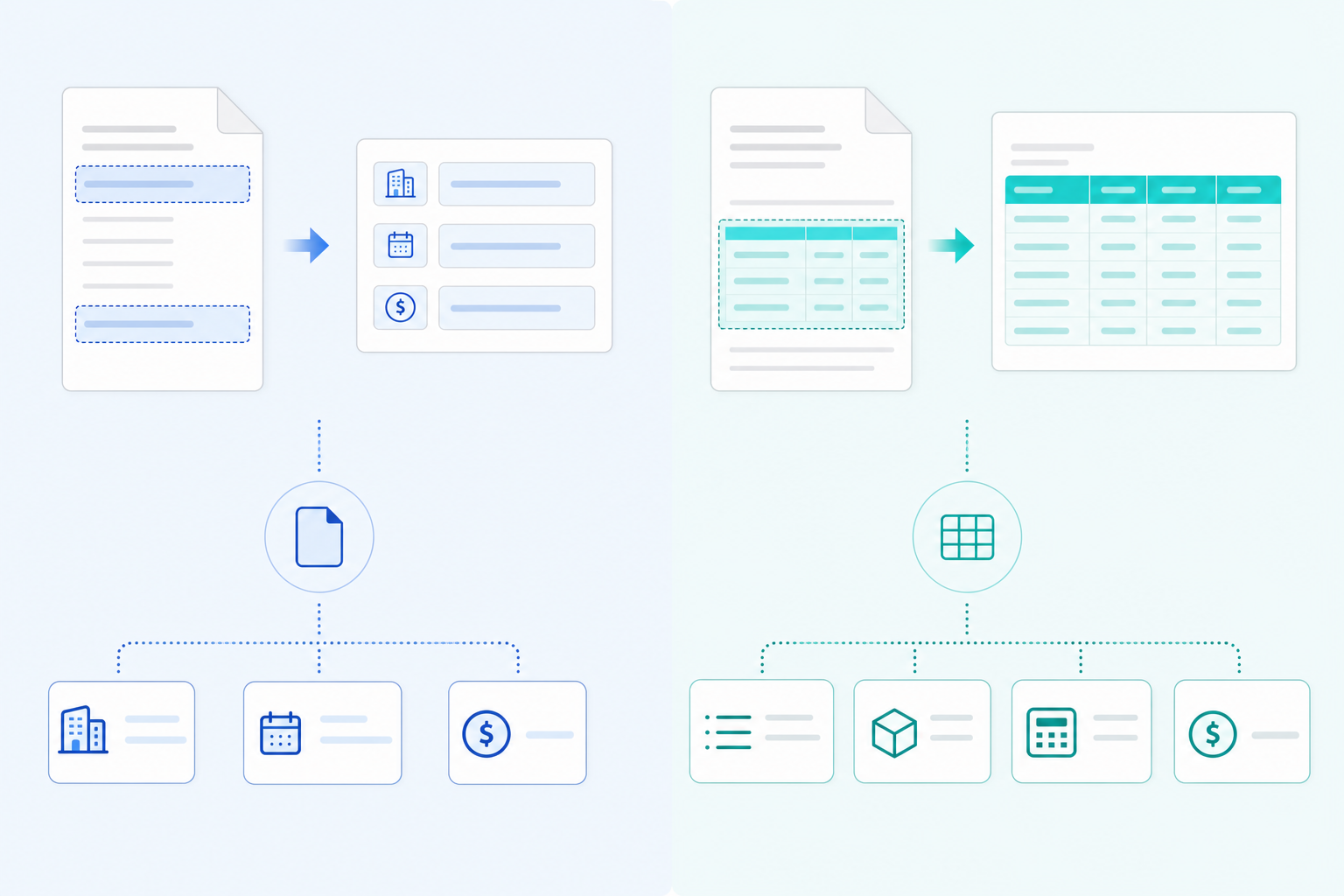
Here's what each approach captures from a supplier invoice:
| Field | Header-only capture | Full line-item extraction |
|---|---|---|
| Supplier name | Yes | Yes |
| Invoice date and total | Yes | Yes |
| Line descriptions | No | Yes |
| Quantities and unit prices | No | Yes |
| Per-line account codes | No | Yes |
| Tax treatment per line | No | Yes |
A 30-line wholesale invoice processed by a header-only tool still requires every line typed manually into Xero. The supplier name came pre-filled — everything else is on you. That's not automation. That's the appearance of a solved problem with the actual work quietly intact.
Full line-item extraction is what removes the manual step entirely. Every row on the invoice — description, quantity, unit price, account code, tax treatment — gets extracted and posted to Xero without re-entry. The bookkeeper reviews what the tool already did rather than doing the job themselves.
"Our clients have been asking for line item extraction and we haven't been able to provide them. We were trying to push Dext for it for I believe about two years but nothing came out." — Tengku Adibah T. Kamarudin, Director, Accounting Superhero (Malaysia)
If a tool you're reviewing doesn't extract line items, the time it saves is limited to the header — which is rarely where bookkeeping time actually goes.
Bank statements are a separate document type from invoices, but they sit inside the same automation workflow for most Xero users. Getting them processed accurately is just as important as invoice extraction, and the manual alternative is just as painful.
Xero's built-in bank feeds cover many major banks, but gaps appear regularly. Smaller regional banks, overseas accounts, and credit card providers often require manual CSV uploads or statement imports, which reintroduces the data entry problem you were trying to avoid.
Xero accepts OFX, QIF, and CSV file formats for manual bank statement imports, but the formatting requirements are strict. A mismatched column header or an unexpected date format will reject the entire file. For firms processing statements from multiple clients across different banks and countries, this creates a recurring bottleneck every month.
Rather than manually reformatting each statement, an AI document processing layer can automate invoice entry in Xero and extract transaction data directly from PDF bank statements for import. This removes the conversion step and reduces the risk of formatting errors that cause import failures.
The broader point is that bank statement processing and invoice extraction benefit from the same underlying approach: get the data out of the document accurately, map it to the right fields in Xero, and let your accounting software do what it was built for.
Even with the right tools in place, Xero invoice data entry automation doesn't always go smoothly from day one. A few recurring issues trip up most firms during setup, and knowing them in advance saves a lot of frustration.
Supplier invoices arrive in all kinds of conditions: blurry scans, low-resolution photos, and PDFs with overlapping text. AI-based extraction and OCR software for invoice processing handles most of these well, but extremely degraded images can reduce accuracy. The fix is straightforward: ask suppliers to send PDFs directly from their accounting software where possible, and flag recurring problem documents for reprocessing.
When a new supplier appears for the first time, there's no coding history to learn from. Most tools will leave the account code blank or apply a generic default. The practical workaround is to build a short onboarding step into each new client setup: manually code the first 10 to 15 invoices per supplier so the AI has enough examples to generalise correctly going forward.
Automation speeds up extraction, but if invoices still sit in a review queue waiting for a single approver, the time savings stall. Structuring approval workflows by invoice value works well here: low-value, repeat invoices from trusted suppliers can publish automatically, while higher-value or unusual invoices route for review.
Bookkeepers who've been burned by poorly performing OCR tools in the past are understandably skeptical. The best approach is a short parallel-run period where staff process invoices both manually and through the automated workflow, then compare outputs. Once accuracy is visible and verifiable, resistance drops quickly.
When you're managing invoices across dozens of clients in Xero, the bottleneck rarely sits inside Xero itself. It sits in the step before: getting invoice data out of PDFs and into the system accurately, with the right account codes, the right tax treatment, and the right line-item detail.
Most firms handling multi-client workflows hit the same wall. Each client has different suppliers, different document formats, and different chart of accounts mappings. What works for one client's supplier invoices may need entirely different coding for another's.
Tofu sits as the document processing layer between your incoming invoices and Xero. You upload invoices, Tofu extracts every line item, maps each one to the correct account code based on your coding history for that client, and publishes directly to Xero via native integration.
A few things make this worthwhile at scale:
For firms where a bookkeeper manages 20 or 30 Xero files, the time difference adds up fast. What used to take 3 to 4 hours can be done in 30 to 60 minutes, according to Tammy Tan at Klozer.
One of the quieter advantages of AI-based invoice processing is that it gets better the more you use it. Early on, you review and adjust. Over time, those adjustments become the baseline.
When you correct a coding decision, say reassigning a line item to a different account code, that correction feeds back into the system. The next time a similar invoice arrives from the same supplier, the right code is already applied. No re-teaching required.
This matters most for firms handling repeat suppliers across many clients. The AI builds supplier-specific memory, so extraction and coding accuracy compound with volume rather than plateauing.
The result is that the time your team spends reviewing Xero entries shrinks progressively. You're not starting from zero each month. The system carries forward what it's already learned, and your chart of accounts mapping stays consistent without manual policing.
Tofu is an AI document processing layer built for accounting firms that work in Xero.
The learning piece is what separates it from single-function extraction tools. Tofu remembers how you code each supplier, so recurring invoices from the same vendor get coded the same way, every time, without you touching them.
Most Xero users run into the same wall: the software manages your ledger well, but getting invoice data into it is still a manual job. Tofu sits in front of that step.
One Tofu customer, Tammy Tan of Klozer, put it plainly: "What used to take me 3-4 hours can be done in 30-60 minutes."
The Xero native integration means no CSV imports, no copy-paste, and no reformatting. You review, approve, and publish.
Automation that only reads the invoice header doesn't actually remove the manual work, it just adds a step before typing everything in. What matters is full line-item extraction that learns your chart of accounts and publishes to Xero without re-entry. Xero invoice data entry automation pays off when your review time shrinks month over month because the AI already knows how you want things coded. If you want to see this working on your own invoices, book a demo and we'll process a document live.
Yes. AI-powered tools like Tofu read your existing coding patterns from Xero's historical data and apply that logic automatically. When you correct a coding decision, the system learns and applies that correction to future invoices from the same supplier without requiring manual rule configuration.
Header-only capture pulls supplier name, date, and total, then stops — you still type every line item manually into Xero. Full line-item extraction pulls descriptions, quantities, unit prices, and account codes for every row on the invoice and publishes the complete data to Xero, eliminating manual re-entry entirely.
Firms processing high invoice volumes report cutting data entry time by up to 80%. A bookkeeper handling 200 invoices monthly can recover 6 to 10 hours of billable time per week. One accounting firm reduced invoice processing from 3-4 hours to 30-60 minutes per batch after implementing automation.
Tools with multilingual support process invoices in 200+ languages without requiring translation or language selection. Tofu extracts line items from Thai, Arabic, Chinese, and other non-Latin-script documents, then publishes structured data directly to Xero with English translations included for review before posting.
Yes. AI document processing tools extract transaction-level data from PDF bank statements in any format and publish directly to Xero without manual CSV imports or column mapping. This covers overseas accounts, credit cards, and regional banks not supported by Xero's native bank feeds.